
Word 365 In Practice - Ch 5 Guided Project 5-3
SIMnet Word project instructions
· Excel Projects Help
Guided Project 5-3 - SIMnet Project Steps to complete This Project
Mark the steps as checked when you complete them.
1.Open the RenewalLetter-05 start file. If the document opens in Protected View, click the Enable Editing button so you can modify it.
The file will be renamed automatically to include your name. Change the project file name if directed to do so by your instructor, and save it.
2.Insert a current date field.
3.Delete the “[Insert current date]” placeholder text (including the brackets). Don’t delete the paragraph mark at the end.
4.Click the Date & Time button [Insert tab, Text group] to open the Date and Time dialog box.
5.Select the date option (use January 1, 2026 format), check the Update automatically box, and click OK to insert the current date and to close the dialog box.
Start the mail merge and select the recipients.
6.Click the Start Mail Merge button [Mailings tab, Start Mail Merge group] and select Letters.
7.Click the Select Recipients button [Start Mail Merge group] and select Use an Existing List. The Select Data Source dialog box opens.
8.Select the SouzaRenewals-05 Excel file, downloaded from the Resources link, and click Open. The Select Table dialog box opens.
9.Select the Renewals$ table, check the First row of data contains column headers box, if necessary, and click OK.
10.Click the Edit Recipient List button [Start Mail Merge group] to open the Mail Merge Recipients dialog box.
11.Click the Last Name column heading drop-down arrow and select Sort Ascending. The records are sorted by last name.
12.Deselect the check box on the last four recipients so they are not included in the merge (Figure 5-91).
A screenshot of the Mail Merge Recipients dialog box shows the method to select or deselect recipients.The dialog box shows the text "This is the list of recipients that will be used in your merge. Use the options below to add to or change your list. Use the checkboxes to add or remove recipients from the merge. When your list is ready, click OK." Below is a rectangular block that shows a table. The table consists of 7 columns and 8 rows. The column headings are Data Source, a marked check box, Last Name, First Name, Courtesy Title, Company, and Address. The row entries are as follows: Row 1: Souza Renewals - 05, a marked check box, Gordan, Lamar, Mr., Seirra Fence Company, and 2405 Eureka Avenue. Row 2: Souza Renewals - 05, a marked check box, Lauchner, Valerie, Ms., Lauchner Legal Services, and 7701 Montero Road. Row 3: Souza Renewals - 05, a marked check box, Mendez, Cesar and Cindy, Mr. and Mrs., Auburn Physical Therapy, and 6993 Sorrell Road. Row 4: Souza Renewals - 05, a marked check box, Munson, Barry, Mr., Munson Construction, and 4112 Foothills Boulevard. Row 5: Souza Renewals - 05, a check box, Sandu, Amandip, Mr., Web Star Computers, and 4008 Laird Road. Row 6: Souza Renewals - 05, a check box, Santos, Jeff and Jayne, Mr. and Mrs., Foothills Pharmacy, and 1185 Whitney Avenue. Row 7: Souza Renewals - 05, a check box, Stockton, Phil and Lisa, Mr. and Mrs., Stockton Cabinets, and 3380 Center Avenue. Row 8: Souza Renewals - 05, a check box, Victorino, Josh and Astrid, Mr. and Mrs., Sacramento Custom Printing, and 5560 Washington Avenue. Row 8 is selected. The last four rows of checkboxes are together labeled Deselect four recipients. Below the block is a Data Source feature on the left with a text box below. The text box shows the text Souza Renewals - 05 dot x l s x. Below the block are the Edit and Refresh buttons. To the right of the Data Source feature is the Refine recipient list feature. Below the feature are the options Sort, Filter, Find duplicates, Find recipient, and Validate addresses. The bottom right of the dialog box shows the OK button.
13.Deselect four recipients
Figure 5-91 Deselect recipients
14.Click OK to close the Mail Merge Recipients dialog box.
15.Insert the address block and greeting line merge fields into the letter.
Turn on Show/Hide [Home tab, Paragraph group].
16.Delete the “[Address]” placeholder text (including the brackets). Don’t delete the paragraph mark at the end of the line.
17.Click the Address Block button [Mailings tab, Write & Insert Fields group] to open the Insert Address Block dialog box.
18.Select the Mr. Joshua Randall Jr. option in the Specify address elements area. Click the Next button in the Preview area to view each of the four recipients.
19.Click OK to close the Insert Address Block dialog box and to insert the <<AddressBlock>> merge field in the document.
20.Delete the “[Greeting]” placeholder text (including the brackets). Don’t delete the paragraph mark at the end of the line.
21.Click the Greeting Line button [Mailings tab, Write & Insert Fields group] to open the Insert Greeting Line dialog box (Figure 5-92).
A screenshot of the Insert Greeting Line dialog box shows the format of the greeting line.The dialog box shows the Greeting line format feature with three horizontally aligned text boxes, each with a drop-down arrow. The text boxes show the text Dear, Mr. Randall, and a colon. The colon is labeled Select colon from drop-down list. Below the text boxes is the Greeting line for invalid recipient names feature with a text box below. The text box shows the text Dear Sir or Madam, and a drop-down arrow on the right. Below is the Preview section, which shows Here is a preview from your recipient list feature. Below the feature are the Previous arrow, the entry 1, and the Next arrow. Below is a block which shows the text Dear Mr. Gordon:. Below the block is the Correct Problems section, which shows the text: If items in your greeting line are missing or out of order, use Match Fields to identify the correct address elements from your mailing list. Below, on the far left, is the Match Fields button. The OK and Cancel buttons are shown on the bottom right of the dialog box. The OK button is selected.
22.Select colon from drop-down list
Figure 5-92 Insert Greeting Line dialog box
23.Select Dear, Mr. and Mrs. Randall, and: (colon) from the three drop-down lists in the Greeting line format area.
24.Click OK to close the Insert Greeting Line dialog box and to insert the <<GreetingLine>> merge field in the document.
25.Insert other merge fields in the body and table of the document.
26.Click the Highlight Merge Fields button [Mailings tab, Write & Insert Fields group] to highlight the merge fields in the document.
27.Delete the “[Policy Number]” placeholder text (including the brackets) in the subject line. Don’t delete the space before or after the placeholder text.
28.Click the Insert Merge Field drop-down arrow [Mailings tab, Write & Insert Fields group] and select Policy_Number from the drop-down list.
29.Verify one space displays before and after the <<Policy_Number>> merge field.
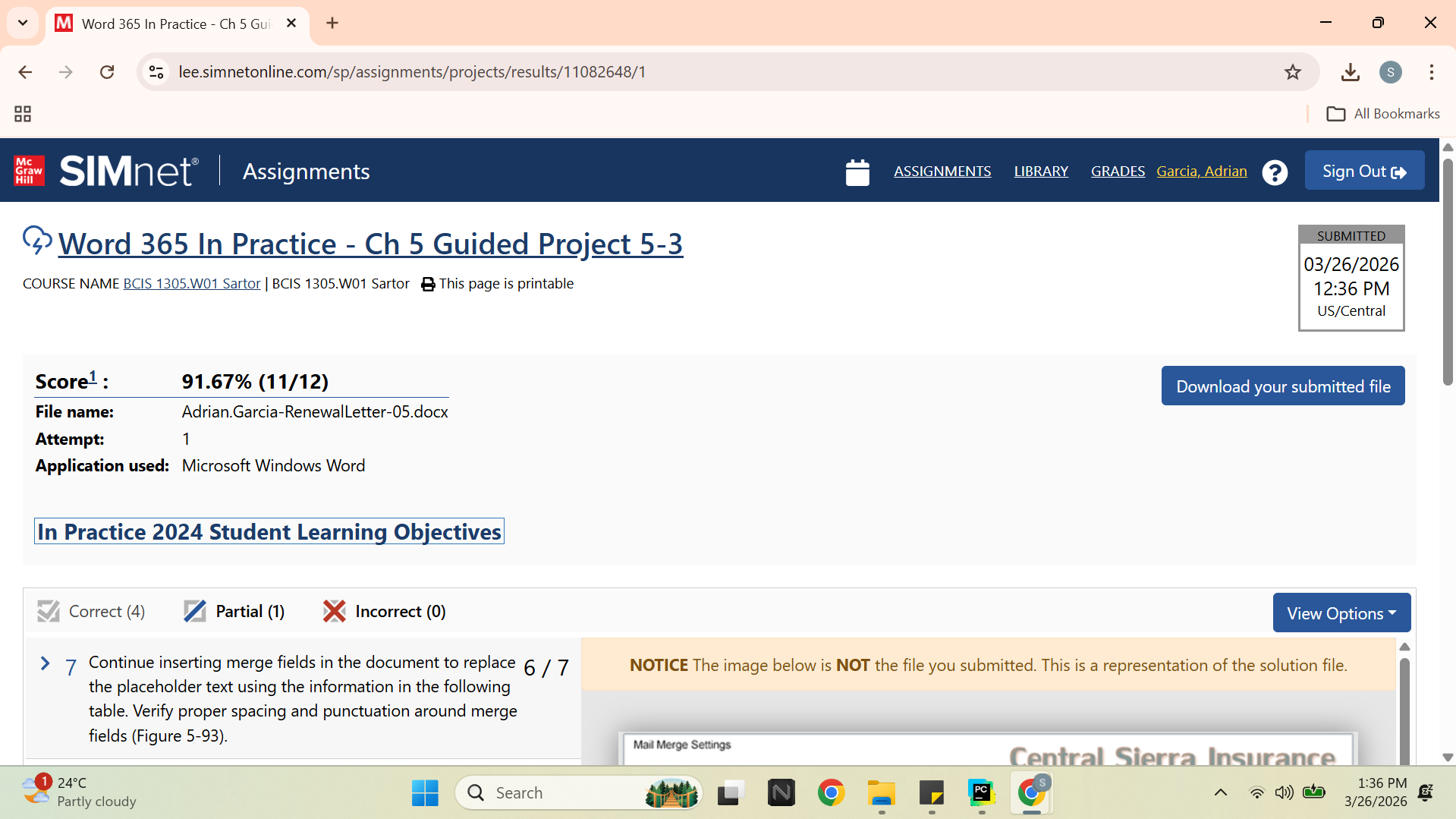
Continue inserting merge fields in the document to replace the placeholder text (including the brackets) using the information in the following table. Verify proper spacing and punctuation around merge fields (Figure 5-93).
A screenshot of a document shows the merged fields.The document shows the text Address Block at the top left, shaded in grey. Below is the text, Greeting Line, shaded in grey, followed by the text "Subject: Policy Policy Number Renewal." The part Policy Number is shaded in grey. Below the text are two paragraphs. The words Company in paragraph 1 and Insurance Company in paragraph 2 are shaded in grey. Below the paragraphs is the text "The renewal premium is determined as follows:" Below the text is a table, which is described as follows: Policy Description, Policy_Description, shaded in grey. Premium Basis, Premium_Basis, shaded in grey. Rate per $ 1000, Rate_per_1000, shaded in grey. Total Premium, Total_Premium, shaded in grey. The document ends with a text in which the words First Name are shaded in grey.
Figure 5-93 Merge fields inserted into the letter
This table lists merge fields to be inserted into a document
Placeholder Text Location Merge Field
[Company] First body paragraph Company
[Insurance Company] Second body paragraph Insurance_Company
[Policy Description] First column of table Policy_Description
[Premium Basis] Second column of table Premium_Basis
[Rate per $1000] Third column of table Rate_per_1000
[Total Premium] Fourth column of table Total_Premium
[First Name] Last body paragraph First_Name
30.Insert the Company merge field in the document to replace the [Company] placeholder text.
31.Insert the Insurance_Company merge field in the document to replace the [Insurance Company] placeholder text.
32.Insert the Policy_Description merge field in the document to replace the [Policy Description] placeholder text.
33.Insert the Premium_Basis merge field in the document to replace the [Premium Basis] placeholder text.
34.Insert the Rate_per_1000 merge field in the document to replace the [Rate per $1000] placeholder text.
35.Insert the Total_Premium merge field in the document to replace the [Total Premium] placeholder text.
36.Insert the First_Name merge field in the document to replace the [First Name] placeholder text.
Preview and check for errors in the merge.
37.Click the Preview Results button [Mailings tab, Preview Results group] to display the recipient information in the merge fields in the document.
38.Click the Next Record or Previous Record button to preview all four recipients.
39.Click the Preview Results button to turn off the previewing and to display the merge fields in the document.
40.Click the Highlight Merge Fields button to turn off this feature.
41.Click the Check for Errors button [Mailings tab, Preview Results group]. The Checking and Reporting Errors dialog box opens (Figure 5-94).
A screenshot shows the Checking and Reporting Errors dialog box.The dialog box shows three options, each with a radio button. The options are Simulate the merge and report errors in a new document, Complete the merge, pausing to report each error as it occurs, and Complete the merge without pausing. Report errors in a new document. The Simulate the merge and report errors in a new document option is selected. The OK and Cancel buttons are present on the bottom right of the dialog box. The OK button is selected.
Figure 5-94 Checking and Reporting Errors dialog box
42.Click the Simulate the merge … radio button and click OK. A dialog box opens confirming that no errors exist (Figure 5-95). If errors exist, the errors are reported in a new document.
A screenshot of the Microsoft Word dialog box shows a no error message.The dialog box shows an icon with lowercase I inside a blue circle, on the left. To the right is the text No mail merge errors have been found in "Word 5-3 renewals". The bottom center of the dialog box shows the OK button, which is selected.
Figure 5-95 Dialog box confirming no errors in the merge
43.Click OK to close the dialog box.
44.Save and close the document (Figure 5-96).
A screenshot shows the Print Preview view of a document.The document shows the title Central Sierra Insurance on the top right, followed by the address and the contact information below. Below the title is the date August 2, 2026, on the left. Below is the text Address Block, followed by another text, Greeting Line. This is followed by the text "Subject: Policy Policy_Number Renewal." Below the text are two paragraphs. Below the paragraphs is the text "The renewal premium is determined as follows:" Below the text is a table, which is described as follows: Policy Description, Policy_Description. Premium Basis, Premium_Basis. Rate per $ 1000, Rate_per_1000. Total Premium, Total_Premium. Below the table is a paragraph. Below the paragraph is the text Sincerely. The document ends with the text Gretchen Souza, A R M, C I C, C R M, Central Sierra Insurance, gretchen at the rate of central sierra dot com. The words Address Block, Greeting Line, Policy Number, Company, in the first paragraph, Insurance Company, in the second paragraph, Policy_Description, Premium_Basis, Rate_per_1000, Total_Premium, and First Name, in the third paragraph, are all accompanied by a double left arrow on the left, and a double right arrow on the right.
Figure 5-96 RenewalLetter-05 completed
45.Upload and save your project file.
46.Submit file for grading.